Administrators can share curated funding searches and curated lists of selected funding opportunities in a Newsletter format with groups of users in Admin > Tools > Newsletters > Create a Newsletter.
Creating a Newsletter
- Prepare the funding opportunities list you want to share
- All internal funding opportunities
- Curated Search (dynamic list of search results)
-
Curated List (static list of selected opportunities)
- Complete the fields on the Create a Newsletter page
- Name your newsletter (required) - use a unique name for clarity
- Choose funding opportunities to share - select one of more lists
- Set sorting order - choose how opportunities appear (by deadline, award amount sponsor, title)
- Add heading and custom message - include any other information you would like to share with your researchers along with the funding opportunities
- Choose recipients - select one or more predefined groups, or share with all registered user.
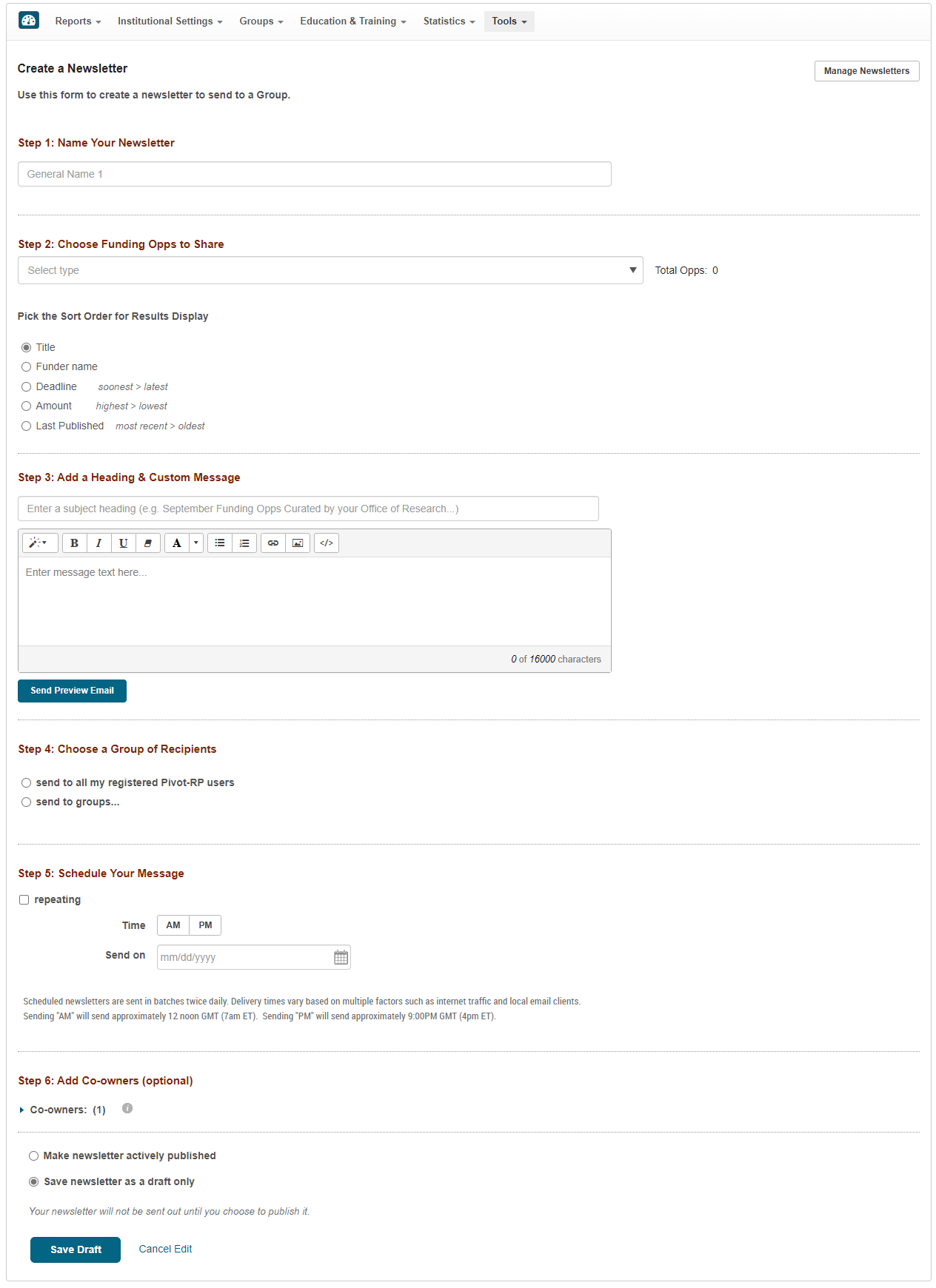
- Schedule Delivery
- One-time send - leave Send on field empty to send immediately after publishing, or set a date/time (AM/PM)
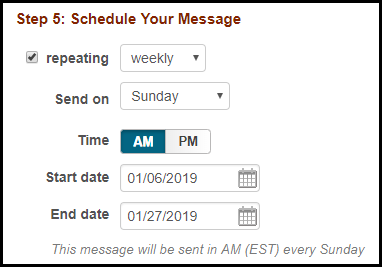
- Recurring send – select repeating, choose weekly, bi-weekly, or monthly, select day, time, and set start/end dates (optional). You can edit the newsletter between sends.
-
Add co-owners - assign colleagues with newsletter admin rights. Co-owners have full editing privileges, including the ability to delete or remove you as owner.
- Save or publish
- Save draft - select Save newsletter as a draft only and click Save Draft.
- Publish - select Make newsletter actively published and click Publish - if scheduled, the newsletter will be sent on the chosen date, and if unscheduled, it will send immediately.
A newsletter looks something like the following to the recipient
Manage Newsletters
Administrators can view newsletter details and edit newsletters that they are listed as an owner of in Admin > Tools > Newsletters > Manage Newsletters.
- View newsletter details – click the right-pointing arrow next to the newsletter name to see history and recipient details. Note: You also receive an email each time a newsletter is sent.
- Edit or publish a newsletter that you own – click the newsletter name to open the Edit Newsletter page.
- Copy a newsletter that you own – select Options > Copy > Yes. The copy opens on the Edit Newsletter page for changes.
- Unpublish a newsletter – select Options > Unpublish > Yes.
- Delete a newsletter – select Options > Delete > Yes.
