- Customizing the Pivot-RP User Interface
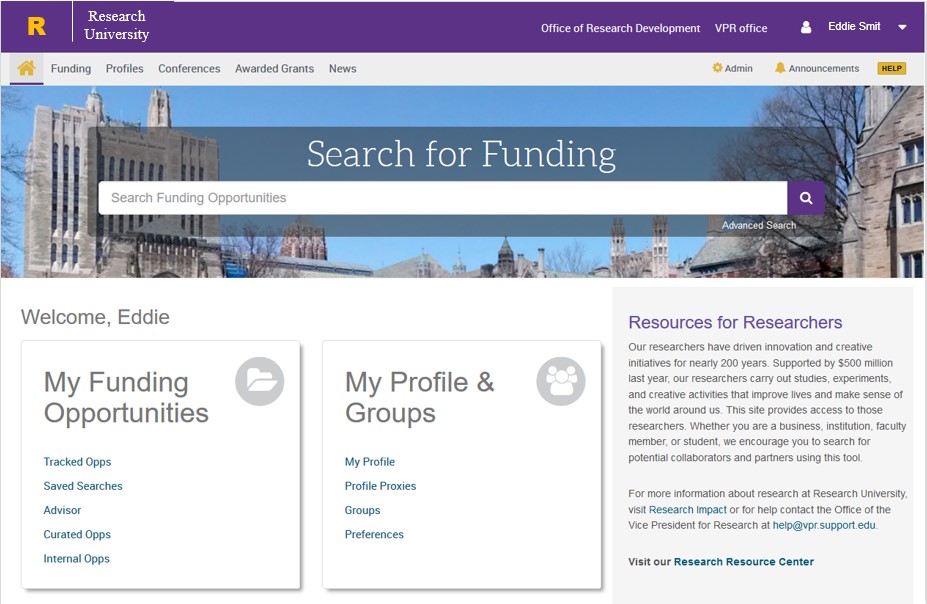
The Custom Branding page (Admin > Institutional Settings > Custom Branding) allows you to personalize the Pivot-RP interface. You can:
- Upload a main logo for the user interface, newsletters, and funding alert emails.
- Customize the primary navigation header bar by changing its colors and adding a background image.
- Modify highlight colors for internal and limited submission opportunities.
- Add custom links to the header.
- Fully customize the right-hand panel with your own text, colors, images, and links to promote your research office, resources, contacts, or provide guidance for users (see Editing Tips & Resources Section further down).
Changes made during configuration are visible in your current session but will not appear to other users until you save them.
Customizing Branding for Email Alerts and Newsletters
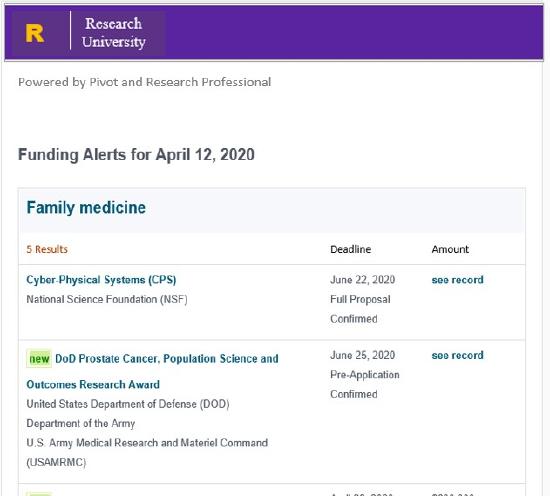
On the Custom Branding page, you can add branding to weekly email alerts and newsletters.
You may upload optional custom logos for alerts and newsletters if you want different branding for each. If no custom logo is added, these emails will automatically use the primary logo and header colors from your home dashboard—recommended for most cases.
- Configuring Institution Search Settings
On the Search Settings page (Admin > Institutional Settings > Search Settings), you can set default values for Applicant/Institution Location, Activity Location, and Citizenship for all funding searches. These defaults apply automatically but users can change or clear them when searching.
You can also set the default currency for the Funding Discovery page’s keyword wheel one of the following currencies: USD, EUR, GBP, or AUD.
- Configuring Full Text Linking
Your library can enable a link for accessing full-text articles. To set this up:
- Check Enable linking.
- Enter your library’s OpenURL link resolver base URL.
If you don’t know the URL, contact your library for assistance.
- Editing Tips & Resources Section
You can customize the Tips & Resources section on the Home page (Admin > Institutional Settings > Custom Branding) to share helpful information for researchers when they log in.
By default, this section includes links to:
- Online resources for finding Funding and managing Profiles
- Training videos
- Contacting the Support Team
Update it to include any additional guidance or resources relevant to your institution by using the following editor options:
- Creating a Funding Search Widget
You can embed a widget on your website that lets visitors search Pivot-RP for funding opportunities.
To create the widget:
- Go to Admin > Tools > Widgets > Funding Opportunities Search Widget.
- Customize the widget using the on-screen options (a preview is shown).
- Click Create Widget and copy the generated code to your website.